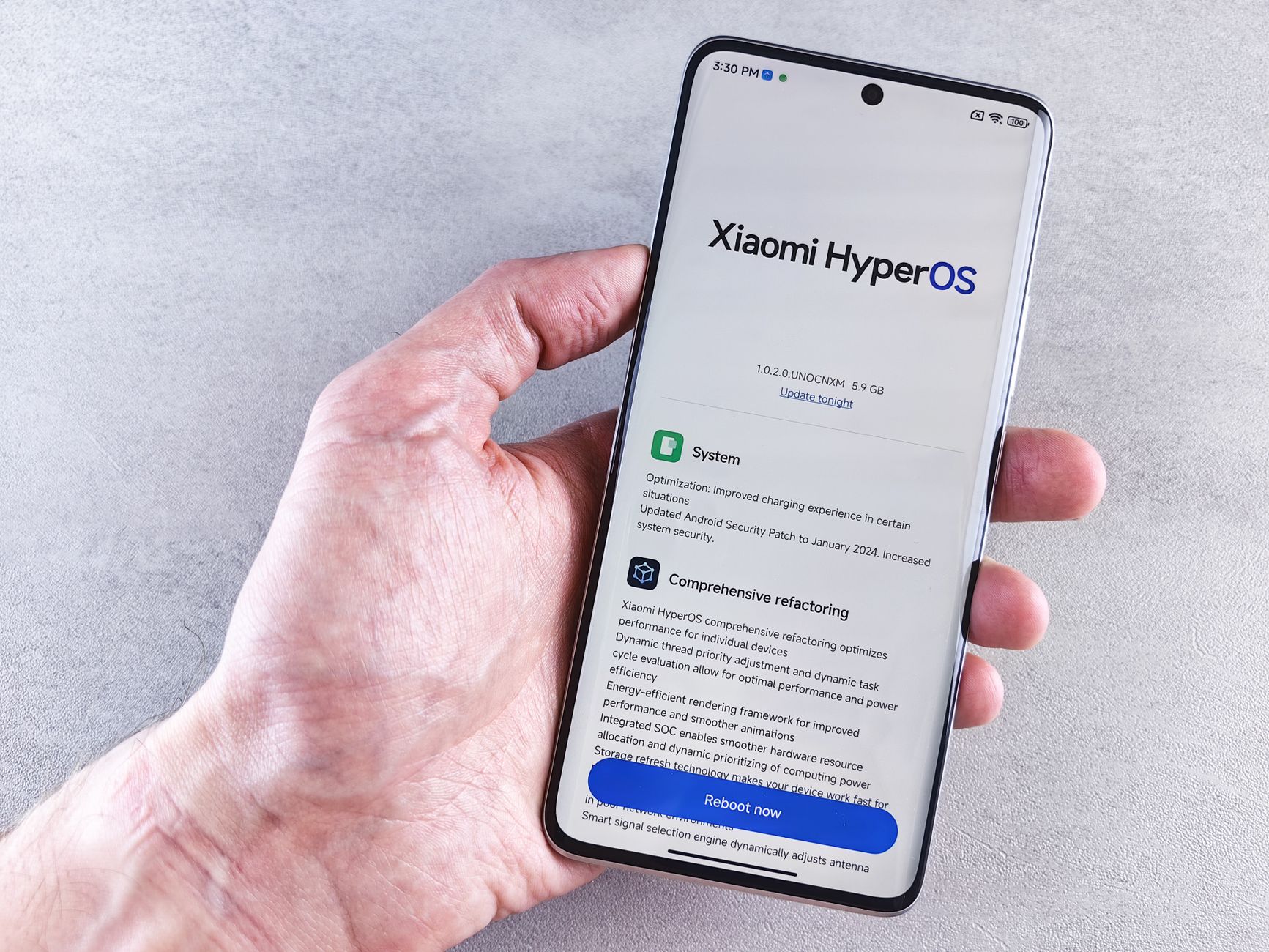
Windows 11 update is here with KB5132061, introducing new features and direct download links for users looking for an offline installer.
What’s New in Windows 11 KB5132061?
The latest Windows 11 update, identified as KB5132061, brings a host of new features and improvements aimed at enhancing user experience. This update is available for both standard users and those seeking offline installation options.
Among the most notable additions in this update are:
- Improved Performance: Users can expect faster boot times and enhanced system responsiveness.
- New Accessibility Features: Enhanced tools for users with disabilities, making navigation and interaction more straightforward.
- Updated Security Measures: This update strengthens the operating system’s defenses against potential threats.
- Enhanced User Interface: Subtle tweaks to the interface that improve overall aesthetics and usability.
- Integration of New Apps: New applications that offer additional functionality and entertainment options.
Downloading the Windows 11 update is easy, with direct download links provided for users who prefer to install the update offline. This ensures that everyone can benefit from the latest features and improvements without delay.
As always, users are encouraged to back up their data before proceeding with any updates to ensure a smooth transition.
How to Download the Offline Installer
To download the offline installer for the Windows 11 update, follow these simple steps to ensure a smooth installation process. The offline installer allows you to update your system without needing an active internet connection.
- Visit the Microsoft Update Catalog: Go to the official Microsoft Update Catalog website.
- Search for the Update: In the search bar, type in Windows 11 KB5132061 and press enter.
- Select the Appropriate Installer: Look for the offline installer version that matches your system architecture (x64 or ARM64) and click on the “Download” button.
- Save the File: A new window will pop up with a link to the .msu file. Click on the link to save the file to your computer.
- Install the Update: Once the download is complete, locate the file and double-click on it to start the installation process.
Following these steps will help you quickly obtain the Windows 11 update offline installer, making the update process more convenient.
User Reactions to the Latest Update
User reactions to the latest Windows 11 update have been largely positive, with many users expressing their excitement over the new features introduced in KB5132061. Social media platforms have been abuzz with comments praising the improved performance and enhanced user interface.
Several users highlighted specific features that stood out to them:
- Enhanced Widgets: Many users appreciate the new widgets, which they find to be more customizable and informative.
- Improved Virtual Desktops: The ability to create and manage multiple desktops has been a welcome addition, allowing for better organization of tasks.
- Performance Boosts: Users have reported a noticeable increase in speed and responsiveness, particularly when running resource-intensive applications.
However, some users have encountered challenges with compatibility issues and bugs. One user noted, “While I love the new features, I faced a few hiccups with my older software.” This has sparked discussions about the importance of ensuring that applications are updated to work seamlessly with the latest Windows 11 update.
Overall, the sentiment appears optimistic, with many looking forward to further improvements in future updates.
Is the Update Worth Installing?
The Windows 11 update KB5132061 brings a host of new features that have generated considerable interest among users. However, many are left wondering if the update is truly worth installing. Here are some factors to consider:
- Performance Improvements: Many users have reported noticeable enhancements in system performance and stability after installing the update. This can lead to a smoother overall experience.
- New Features: The latest update introduces several new functionalities, making the operating system more user-friendly. These include improvements in the user interface and enhanced accessibility options.
- Compatibility: Before upgrading, it’s essential to ensure that your hardware is compatible with the new features. Some older systems may experience issues post-update.
- Potential Bugs: As with any software update, there may be unforeseen bugs that could affect user experience. It’s advisable to check user feedback before proceeding.
- Security Enhancements: The update also includes critical security patches that protect against vulnerabilities, making it a safer choice for those concerned about online threats.
In conclusion, while the Windows 11 update offers exciting new features, weighing the pros and cons based on individual needs is crucial before installation.
Photo by Andrey Matveev on Pexels
Sources
Windows Latest · Windows 10 update history
Related stories
Vivo X500 Series Prices: Worst Leak Reveals Shocking Costs · Galaxy S27 camera sensors: The Complete Leak Revealed · Cisco Meraki Vulnerabilities: The Worst Risks You Need to Know